QR Menu Systems for Cafes and Restaurants
Why does a QR menu system beat a PDF at the table? Set up item disabling, multilingual menus, and table ordering the right way.
Published by: Hızlı Yazılım
Why a PDF Menu Fails at the Table
When a customer scans a QR code and a bulky PDF opens on their phone, that menu loses within a second. PDF is fixed-width, shrinks on mobile, forces pinch-to-zoom, and offers no search. Page navigation is slow. In a café or restaurant, a PDF menu delays decisions and cools the ordering intent.
Updating stock, prices, or campaigns means regenerating the PDF and relinking the QR code, which most businesses skip. Then customers see items that are no longer available and feel misled. A PDF menu manages a file, not the operation.
A web-based QR menu opens in the browser, adapts to the screen, and lets categories be tapped. The customer finds what they want within seconds. The QR code stays the same while content updates in the background.
Disable Out-of-Stock Items Instantly
The most tangible difference with a QR menu system is the ability to switch off a single item. If grilled salmon runs out at noon, you mark it inactive in the admin panel, and it disappears from every table immediately. With a PDF, you either cross it out by hand or make servers repeat 'we're out' all day.
This feature reduces not just customer disappointment but also friction between kitchen and floor staff. Servers no longer bear the 'it's gone' message; customers naturally shift to alternatives. If stock deduction is integrated with the POS, the last portion sold can automatically close the item.
Define a simple routine: at the start of each shift, the chef or barista checks off unavailable items. That ends the evening rush 'also not available' crisis.
Set Up Multiple Languages Without Extra Files
A café in a tourist area that prepares a three-language PDF is managing three separate files. Every update requires three printouts. In a QR menu system, translations live in one panel; the customer sees Turkish, English, German, or Arabic based on their phone language.
You can also add a visible language toggle. If the menu opens in the wrong language, a single tap switches it. When translating dish names, do not translate word for word; add a short description under the local name, such as 'iskender: sliced döner over bread with tomato sauce and yogurt.' This lowers ordering anxiety for foreign customers.
When you add a new product, it updates across all languages at once. If a translation is missing, the system falls back to the default language instead of showing empty fields. That keeps the menu looking professional.
Table Ordering Changes the Floor, But Not for Every Concept
Taking orders from the QR menu shifts the service flow. The customer selects items, the order drops to the kitchen or bar, and the server only delivers and closes the check. This model works well in fast-service cafés, breakfast places, and self-service restaurants.
However, fine dining, tasting menus, or sommelier-led service can feel hollow with table ordering. There, the QR menu should only display items; ordering should remain with the human interaction. The owner must honestly evaluate the concept.
Another benefit of table ordering is a noticeable drop in order errors. Instead of a server reading handwritten notes to the kitchen, the item and its modifiers arrive directly from the screen. Notes like 'less sugar' appear clearly on the digital ticket.
Menu Photos Drive Orders—Bad Photos Kill Them
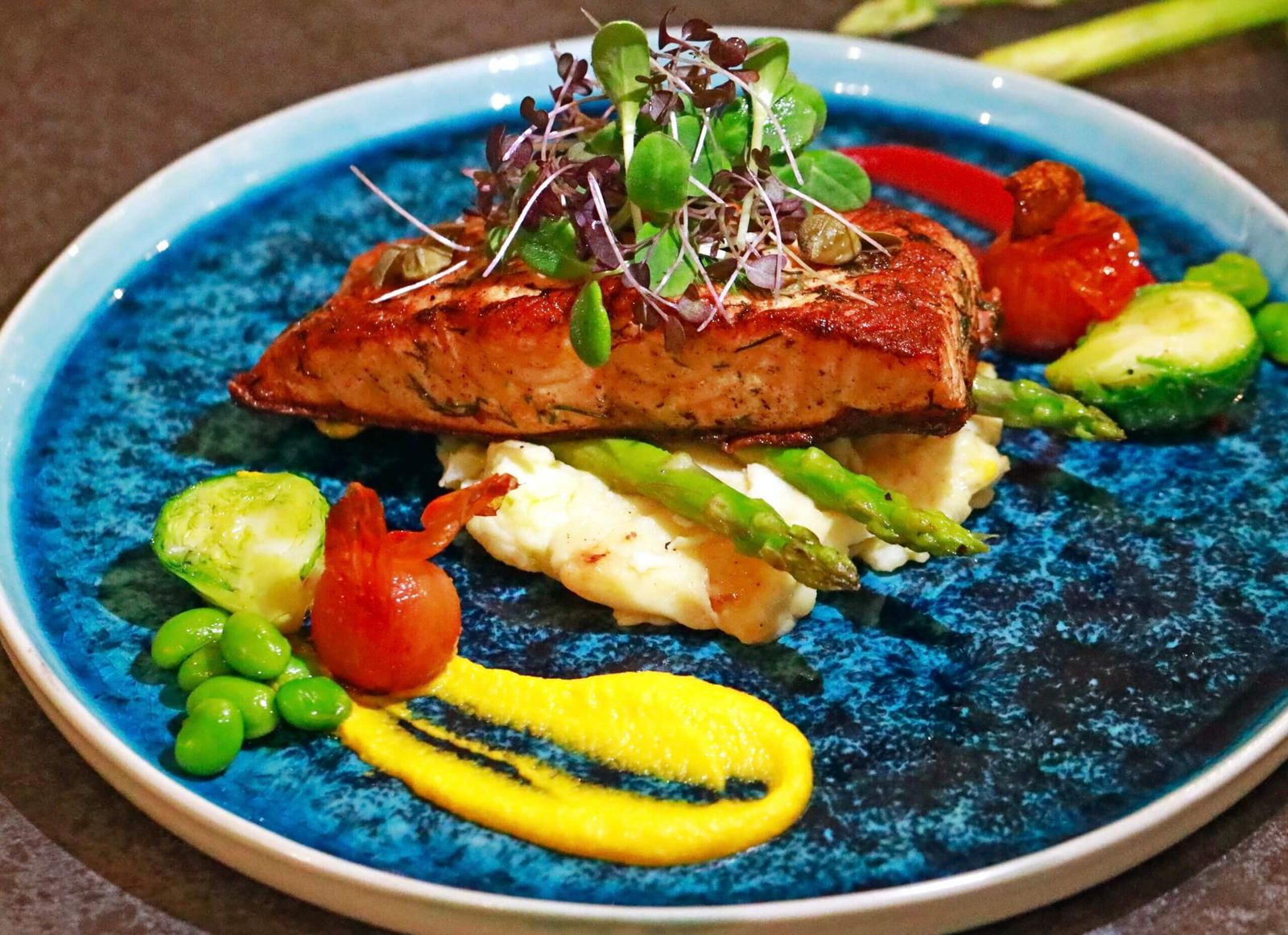
Having a photo for every item in the QR menu speeds up purchase decisions. People tend to pick dishes with clear visuals. But using stock photography breaks trust; if the served plate differs from the menu photo, the customer will not order that item again.
For real photo capture, a phone camera is enough, but shoot in natural light, at a 45-degree angle, showing the whole plate. Avoid heavy filters or oversaturation; the food should not look brighter than reality. One frame per item is enough, with a short description underneath.
Compress images technically; heavy photos slow down the menu. The QR menu screen must load fast. Show a low-resolution preview initially, then allow a tap to enlarge. This keeps the experience smooth even on mobile data.
QR Menu Limits: Devices, Connectivity, and Customer Age
Not everyone has a smartphone, or the camera may fail to scan. Businesses with an older customer base lose guests if they rely solely on QR menus. Keep physical backup menus—at least a few laminated cards—on hand.
If the Wi-Fi is weak or cellular reception is poor, the QR menu takes seconds to open, and customers give up. Before placing QR codes on tables, test with your own phone, using a guest network or mobile data, not the admin Wi‑Fi. Fix the code to the table surface; do not stick it on a distant wall.
A QR menu does not fix kitchen or service problems; it only improves menu access. If prep times are long or staff is indifferent, the digital menu alone will not rescue the experience. Clarify your service standards first, then layer the QR menu on top.